
Understanding how computers store, access, and manage data is essential if you want to make smarter decisions about performance, security, and optimization. Whether you’re upgrading a device, exploring AI applications, or learning core computing concepts, knowing the role of RAM, ROM, Cache Memory, and Virtual Memory can dramatically improve how you approach technology.
Many users struggle with slow systems, inefficient multitasking, or confusion about hardware specifications because the fundamentals of memory architecture aren’t clearly explained. This article is designed to change that. We break down how different memory types function, how they interact with processors, and how they impact real-world performance.
Our insights are grounded in established computing principles, current industry standards, and analysis of modern system architectures. By the end, you’ll have a clear, practical understanding of computer memory—and the confidence to apply that knowledge to device optimization, AI workloads, and everyday tech decisions.
Ever wondered why your computer has both “memory” and “storage”? They serve different roles. RAM is short-term, active workspace; SSD and HDD handle long-term files. Think of RAM as your desk, storage as the filing cabinet. When you open an app, it moves from storage into RAM so the CPU can work fast. More RAM means smoother multitasking; a faster SSD cuts load times. Practical tip: check Task Manager to see memory usage; if it stays above 80%, upgrade. For deeper optimization, follow this step-by-step guide. Understanding computer memory types helps you balance speed, capacity, and cost wisely today effectively.
The Workbench: Understanding Volatile Memory (RAM)
Think of RAM as your computer’s short-term workbench. It’s the space where active programs, open browser tabs, and in-progress documents sit so the processor can grab them instantly. When you shut down your device, that workbench is wiped clean. That’s why it’s called volatile memory—it only holds data while powered on.
DRAM (Dynamic RAM)
DRAM (Dynamic RAM) is the most common type found in PCs and servers. It stores each bit of data in tiny capacitors paired with transistors. The catch? Capacitors leak charge, so the system must constantly “refresh” them thousands of times per second to keep data intact. Some argue this makes DRAM inefficient. In reality, its balance of affordability, storage density, and solid performance makes it ideal for everyday computing. Without it, your laptop would cost far more.
SRAM (Static RAM)
SRAM (Static RAM) is faster and doesn’t need refreshing because it uses flip-flop circuits instead of capacitors. That speed makes it perfect for CPU cache—the ultra-fast memory that keeps frequently used instructions close to the processor (think of it as tools laid out at arm’s reach). The downside? It’s more expensive and takes up more space, so you won’t see it as your main system memory.
How Much Do You Need?
If your system feels slow during multitasking, RAM capacity is often the culprit. 8GB works for browsing and office tasks. 16GB suits gaming and creative apps. 32GB benefits video editing, 3D modeling, or heavy multitasking. Pro tip: Check memory usage in your task manager before upgrading—you might spot the bottleneck instantly.
The Library: A Look at Non-Volatile Memory (Storage)
The first time my laptop crashed during college finals week, I panicked. I was sure my 20-page paper had vanished into the digital void. But when I powered it back on, there it was—intact. That was my first real appreciation for non-volatile memory, the computer’s long-term library. Unlike temporary memory that forgets everything when the power cuts out, this storage keeps your files, applications, and operating system safely “on the shelves.”
To understand how it works, it helps to look at the main computer memory types that fall under this category.
ROM (Read-Only Memory)
Think of ROM as the instruction manual locked in a glass case. It contains the BIOS or UEFI—firmware that tells your computer how to boot up. This chip is programmed at the factory and typically can’t be altered by everyday users. Without it, your machine wouldn’t even know where to begin (kind of like trying to start a car without an ignition).
Flash Memory (NAND)
Flash memory powers SSDs, USB drives, and memory cards. Its biggest strengths?
- Speed: Faster data access than mechanical drives
- Durability: No moving parts to break
- Energy efficiency: Uses less power
According to Intel, SSDs built on NAND flash dramatically reduce load times compared to traditional drives (source: https://www.intel.com/content/www/us/en/architecture-and-technology/solid-state-drives.html).
SSDs vs. HDDs
Here’s where debate creeps in. Some argue HDDs offer more storage for less money—and that’s true. Hard Disk Drives use spinning platters and mechanical arms to read data. They’re affordable and reliable for bulk storage.
However, SSDs win on speed and resilience. No spinning parts means fewer mechanical failures and faster boot times. After switching to an SSD, my laptop went from sluggish to “instant-on” (like upgrading from dial-up to fiber overnight).
In the end, it’s not about hype—it’s about choosing the right shelf for your digital library.
The Accelerator: How Cache Memory Supercharges Your CPU

The Need for Speed
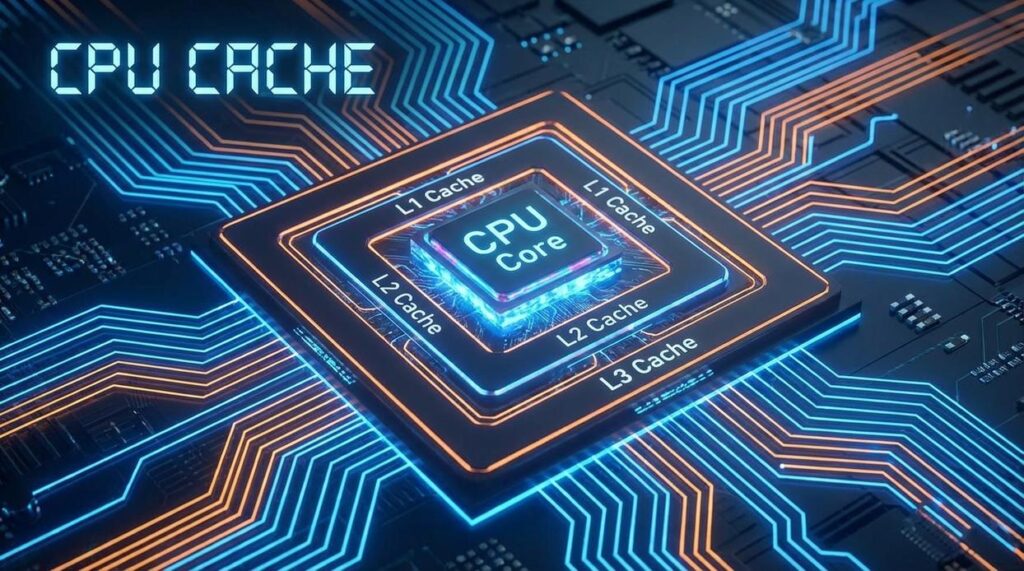
Modern CPUs operate in billionths of a second. Even fast RAM can’t keep up. That delay—called latency (the time it takes to access data)—creates a bottleneck. Cache memory solves this. It’s a tiny pool of ultra-fast SRAM (Static Random Access Memory) built directly into the processor. Think of it as your desk workspace versus a filing cabinet across the room (technically accessible, but slower).
Cache exists to close the speed gap between CPU and RAM.
The Cache Hierarchy (L1, L2, L3)
Cache is layered:
- L1: Smallest and fastest, embedded in each CPU core.
- L2: Larger, slightly slower, still core-specific.
- L3: Largest, shared across cores for teamwork efficiency.
How It Works
When the CPU needs data, it checks L1 first. If found, that’s a cache hit—instant gratification. If not, it checks L2, then L3, and only then slower RAM. Each miss adds delay (like leveling up in frustration).
Impact on Performance
A larger, smarter cache dramatically boosts gaming and repetitive workloads. Some argue raw clock speed matters more. Fair—but without efficient cache, that speed stalls. Speculation: future CPUs may lean even heavier on intelligent cache designs, especially for AI workloads.
For broader infrastructure context, see what is virtualization key concepts and real world uses.
Memory types include SRAM, DRAM, ROM, Cache.
From Power-On to Program-Open: How Memory Types Work in Harmony
When you press the power button, the boot process begins:
- Power on.
- ROM delivers startup instructions through BIOS/UEFI firmware.
- The operating system moves from SSD/HDD storage into RAM—the system’s “workbench.”
In enterprise IT rooms from Silicon Valley labs to Frankfurt data centers, this handoff is routine but critical. ROM (Read-Only Memory, non-volatile firmware storage) ensures hardware knows how to wake up before anything else can run.
Launching an application follows a similar chain reaction:
- You click an icon.
- Core files copy from SSD into RAM.
- Frequently used data shifts into the CPU’s L3, L2, and L1 cache for rapid execution.
Cache is ultra-fast, ultra-small memory positioned closest to the processor (think pit crew, not parking lot).
Some argue newer SSD speeds make RAM less vital. In practice, layered computer memory types prevent bottlenecks. Storage offers capacity, RAM provides workspace, cache delivers immediacy. Together, they keep systems responsive—not just powered on, but performance-ready.
Optimizing Your Digital Experience Through Memory
Now that the fog has lifted, you can see how your system really works. From your SSD’s long-term storage to RAM’s active workspace and the CPU cache’s split-second decisions, each layer plays a role. Admittedly, performance tuning isn’t always straightforward—sometimes a slowdown could stem from software bloat, not hardware limits.
Still, understanding computer memory types gives you a practical edge. For example, if apps crawl at launch, your drive may be the bottleneck; if multitasking stutters, RAM is likely stretched.
So, take a moment to check your specs. Then, test, observe, and adjust accordingly.
You came here to better understand how computer memory works and why it matters for performance, security, and optimization. Now you’ve seen how RAM, ROM, Cache Memory, and Virtual Memory each play a distinct role in speed, stability, and data handling.
When your system slows down, freezes, or struggles with multitasking, memory is often the hidden bottleneck. Ignoring it leads to wasted time, reduced productivity, and unnecessary hardware costs. But when you understand how these memory types interact, you can make smarter upgrade decisions, fine-tune performance, and protect your data more effectively.
The key takeaway? Optimized memory isn’t just a technical detail — it’s the foundation of efficient computing.
Understanding how computer memory works—particularly the roles of RAM, cache, and storage—can significantly enhance your grasp of broader tech topics like data security, as explored in our article on TLS and its crucial role in protecting online data transfers – for more details, check out our What Is TLS and How It Protects Online Data Transfers.
Take Control of Your System Performance Today
If you’re tired of lag, crashes, or underperforming devices, it’s time to act. Apply these memory optimization strategies, evaluate your current configuration, and upgrade where it counts. Join thousands of tech-driven readers who rely on our expert insights to simplify complex computing concepts and improve real-world performance. Start optimizing today and unlock the full power of your machine.
 Senior Data Encryption & Security Architect
Ask Darrells Belleroyals how they got into data encryption and network protocols and you'll probably get a longer answer than you expected. The short version: Darrells started doing it, got genuinely hooked, and at some point realized they had accumulated enough hard-won knowledge that it would be a waste not to share it. So they started writing.
What makes Darrells worth reading is that they skips the obvious stuff. Nobody needs another surface-level take on Data Encryption and Network Protocols, Core Computing Concepts, Expert Breakdowns. What readers actually want is the nuance — the part that only becomes clear after you've made a few mistakes and figured out why. That's the territory Darrells operates in. The writing is direct, occasionally blunt, and always built around what's actually true rather than what sounds good in an article. They has little patience for filler, which means they's pieces tend to be denser with real information than the average post on the same subject.
Darrells doesn't write to impress anyone. They writes because they has things to say that they genuinely thinks people should hear. That motivation — basic as it sounds — produces something noticeably different from content written for clicks or word count. Readers pick up on it. The comments on Darrells's work tend to reflect that.
Senior Data Encryption & Security Architect
Ask Darrells Belleroyals how they got into data encryption and network protocols and you'll probably get a longer answer than you expected. The short version: Darrells started doing it, got genuinely hooked, and at some point realized they had accumulated enough hard-won knowledge that it would be a waste not to share it. So they started writing.
What makes Darrells worth reading is that they skips the obvious stuff. Nobody needs another surface-level take on Data Encryption and Network Protocols, Core Computing Concepts, Expert Breakdowns. What readers actually want is the nuance — the part that only becomes clear after you've made a few mistakes and figured out why. That's the territory Darrells operates in. The writing is direct, occasionally blunt, and always built around what's actually true rather than what sounds good in an article. They has little patience for filler, which means they's pieces tend to be denser with real information than the average post on the same subject.
Darrells doesn't write to impress anyone. They writes because they has things to say that they genuinely thinks people should hear. That motivation — basic as it sounds — produces something noticeably different from content written for clicks or word count. Readers pick up on it. The comments on Darrells's work tend to reflect that.